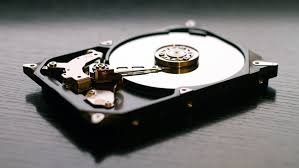
When it comes to upgrading or building a computer, one of the most crucial components you need to consider is the internal hard drive. Whether you’re a gamer, a professional editor, or just someone who wants reliable storage for everyday computing, choosing the right hard drive makes a big difference in your system’s overall performance. Many people focus on processors and RAM, but without a fast and efficient storage drive, your PC will always feel slow and unresponsive.
In this article, we’ll explore the importance of internal hard drives for PCs, the types available, the key factors to consider before buying one, and recommendations for different user needs.
Why Internal Hard Drives Matter for Your PC
An internal hard drive is where your operating system, software, games, and files are stored. Every time you turn on your PC, it boots directly from this drive. A reliable hard drive ensures:
-
Fast system boot-up
-
Quick access to applications
-
Smooth file storage and retrieval
-
Enhanced gaming and editing performance
If your internal drive is outdated or failing, you’ll notice slow load times, lags, and sometimes even system crashes. That’s why investing in the right internal hard drive is essential.
Types of Internal Hard Drives
There are two main types of internal storage drives available for PCs:
1. HDD (Hard Disk Drive)
-
Traditional mechanical storage
-
Uses spinning disks to read/write data
-
Larger storage at lower prices
-
Slower compared to modern options
HDDs are a great choice if you need high-capacity storage for movies, photos, or backups. They are cost-effective and can easily offer up to 4TB or more.
2. SSD (Solid State Drive)
-
Uses flash memory instead of moving parts
-
Much faster than HDDs
-
Better durability and lower power consumption
-
Higher cost per GB
SSD is ideal if you want speed and reliability. With SSDs, your computer boots in seconds, programs load instantly, and games run smoother.
3. Hybrid Drives (SSHD)
-
Combines HDD capacity with SSD speed
-
Stores frequently used files in a faster memory cache
-
Cost-effective middle ground
Although not as common as HDDs or SSDs, hybrid drives can be useful if you need both storage space and speed without breaking the bank.
Key Factors to Consider When Buying an Internal Hard Drive
Before buying a hard drive for your PC, keep these points in mind:
1. Storage Capacity
Think about how much space you really need.
-
Casual users: 500GB – 1TB is enough.
-
Gamers & creators: 2TB or more is recommended.
-
Professionals: 4TB+ for handling large files like videos and 3D models.
2. Speed (RPM or Read/Write)
For HDDs, speed is measured in RPM (Revolutions Per Minute). Common options include 5400 RPM and 7200 RPM. Higher RPM means faster performance.
For SSDs, check read/write speeds. NVMe SSDs are faster than SATA SSDs.
3. Form Factor
-
3.5-inch drives are standard for desktops.
-
2.5-inch drives are mostly for laptops but can also fit in PCs with adapters.
4. Interface
-
SATA III: Most common, works for both HDDs and SSDs.
-
NVMe (PCIe): The fastest interface, mainly for SSDs.
5. Reliability & Warranty
Always choose a trusted brand like Seagate, Western Digital, Samsung, Toshiba, or Crucial. Look for at least a 2–5 year warranty.
Best Options for Different Users
For Everyday Use
A 1TB HDD or 500GB SSD is sufficient for browsing, documents, and light media storage.
For Gamers
Go for an NVMe SSD (500GB – 1TB) for your system and games, plus an extra 2TB HDD for storing large files.
For Professionals (Video/Photo Editing)
A 1TB NVMe SSD for software + 4TB HDD for raw files is a great combination. This setup balances speed and storage.
For Budget Buyers
If you’re tight on budget, consider a 1TB SSHD, as it gives both performance and space at a reasonable cost.
Benefits of Upgrading Your PC Hard Drive
Upgrading your internal drive comes with several advantages:
-
Faster boot times – no more waiting minutes for your PC to start.
-
Better multitasking – open multiple apps smoothly.
-
Improved gaming – reduced loading screens and stutter-free performance.
-
More storage – save larger files without worrying about space.
-
Longer lifespan – new SSDs are more durable than older HDDs.
Installation and Setup
Most PC cases allow you to easily install or replace an internal hard drive. Steps usually include:
-
Power off and unplug your PC.
-
Open the side panel of your CPU case.
-
Mount the drive in the appropriate slot (3.5-inch or 2.5-inch).
-
Connect the SATA power cable and SATA data cable (or NVMe slot).
-
Close the case and boot your PC.
-
Format the drive and partition if necessary.
If you’re not comfortable doing it yourself, a local technician can help with installation.
Conclusion
An internal hard drive for PC is the heart of your system’s performance. Whether you choose an HDD for bulk storage, an SSD for blazing speed, or a combination of both, your choice should align with your usage needs and budget. For everyday tasks, a modest SSD is more than enough. Gamers and professionals, however, should look for faster NVMe drives paired with large-capacity HDDs for the best experience. If you’re searching for reliable options and expert recommendations, Server Tech Central is a trusted place to explore the latest and most efficient internal hard drives for your PC.
Investing in the right hard drive means investing in the long-term performance of your computer. With the right choice, you’ll enjoy faster speed, more storage, and smoother operation for years to come.