Moving to Mac Mail from Outlook email client on Mac but that is making you worried about the emails stored in Outlook for Mac! Wondering how do I export all my Outlook emails in Mac Mail with attachments securely? Looking for an effective and simple approach for the same? Then not to worry at all because in the write-up we have described a solution that will safely export all the Outlook emails in Mac Mail with attachments accurately. But at first, let us explore the reasons responsible behind exporting Outlook emails in Mac Mail.
Why to Export Outlook Emails in Mac Mail?
Apple Mail is introduced by Mac itself and a default email client of Mac OS. It is recognized for a friendly interface, trouble-free integration with macOS features, and strong performance. Migrating to Apple Mail makes sure that emails are accessible across all the Apple-supported devices via iCloud. Besides, we have described some reasons accountable for export –
- Apple Mail possesses a clean, intuitive, and easy GUI. It helps users’ managing all their crucial emails with ease.
- Supports integration with different email services such as Gmail, Yahoo, Outlook, etc., allowing Apple Mail users to manage several accounts at one place.
- Apple Mail is simple yet fast email application.
- Provide support of IMAP and SMTP protocols, making sure that it works perfectly with many email service providers.
How do I Export all my Outlook Emails in Mac Mail? – [Tutorial 2025]
The effective process to export Outlook emails in Mac Mail is MacMister OLM to MBOX Converter Tool. The software has the ability to batch export Outlook emails into Mac Mail account at once. It allow users to use the dual options of the app i.e. Add File(s)/Add Folder to load the necessary Outlook archived OLM files, then pick MBOX saving type from Select Saving Options, set sub-options, and click Export. Within seconds, the tool will successfully export Outlook emails saved in OLM files into Mac Mail with attachments accurately.
Moreover, the tool is compiled with many incredible features that help users exporting Outlook emails in Mac Mail according to the requirements. Also, a freeware version of the tool enables users to test the export steps of the same in detail for free.
Step-by-Step Process to Export Outlook Emails in Mac Mail with Attachments on Mac
Step 1. Download and operate MacMister OLM to MBOX Converter Tool on a Mac machine.
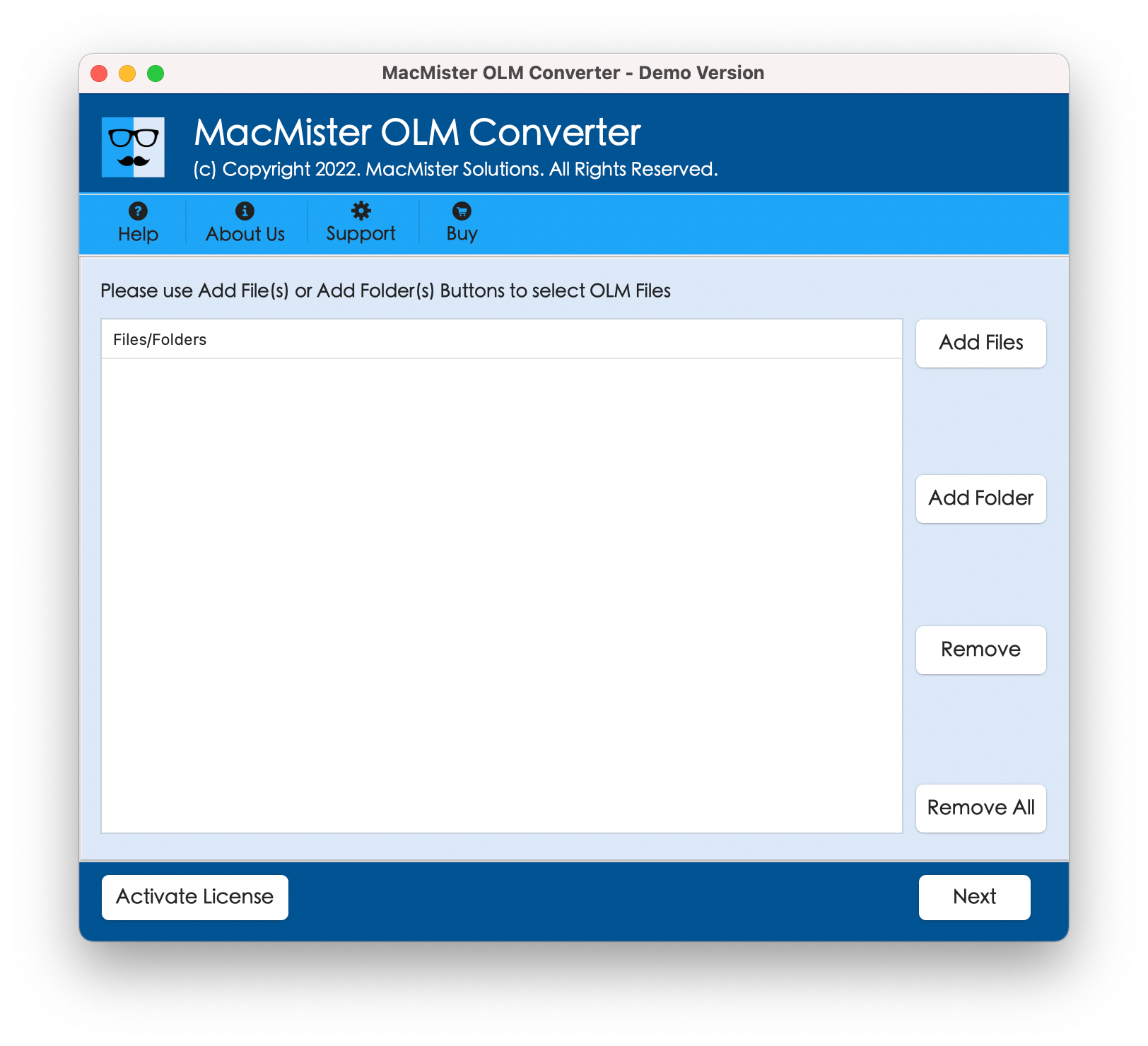
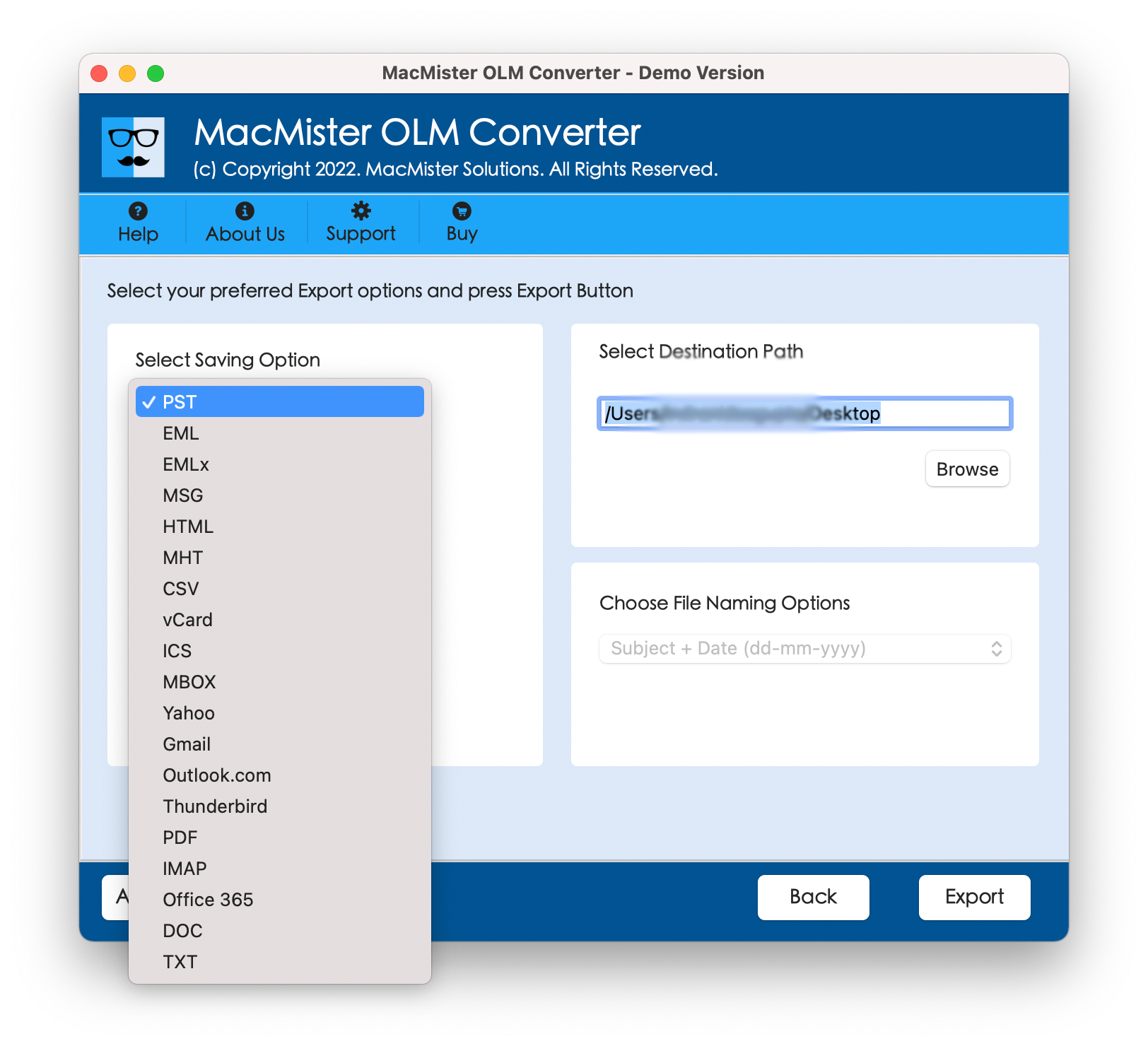
Step 2. Load OLM files on the application using dual options i.e. Add File(s)/Add Folder. The Add File(s) help uploading the requisite .olm files on the tool and the Add Folder will load entire folder holding unlimited .olm files on the tool. After files are loaded successfully, click Next to continue.
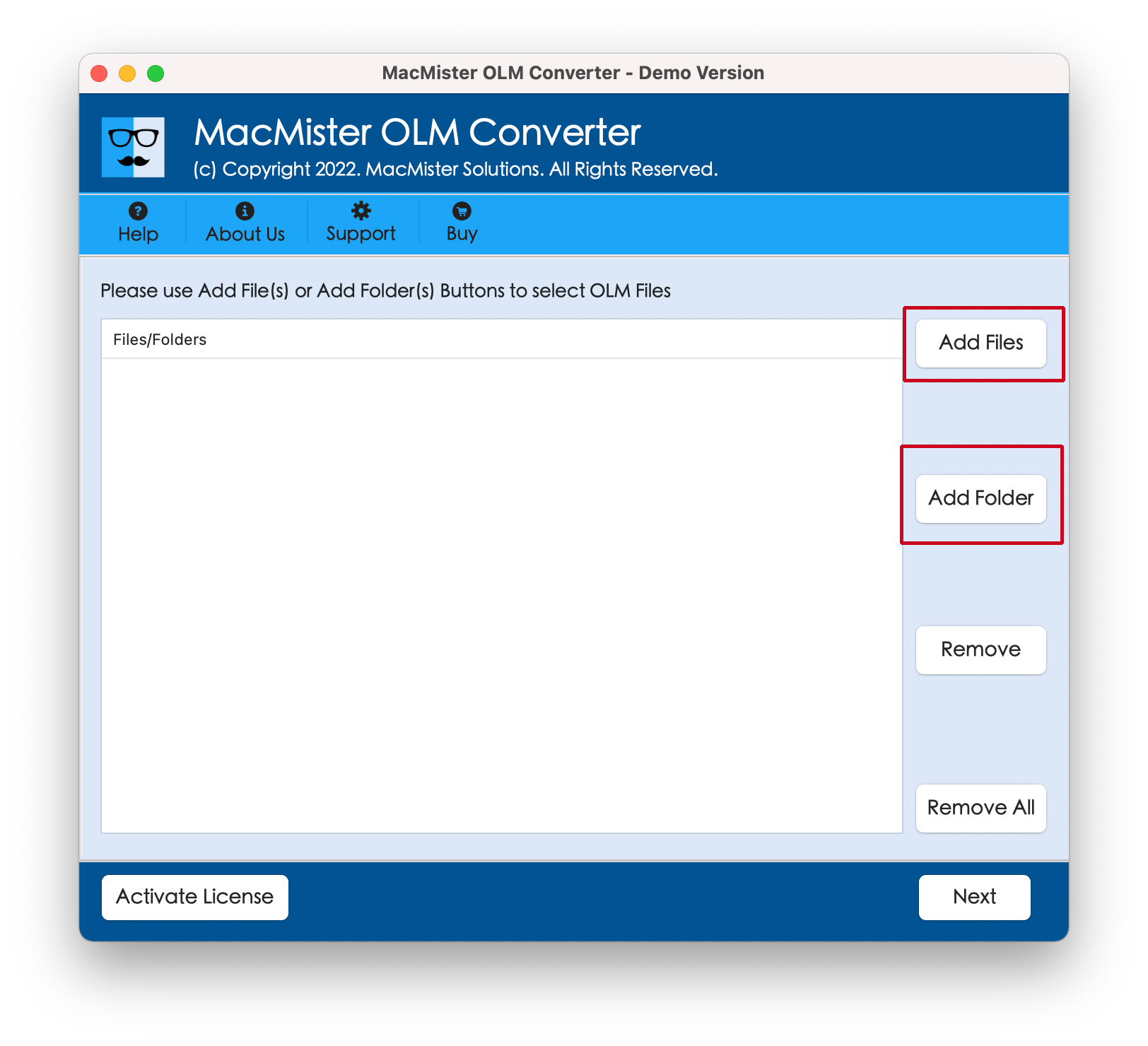
Step 3. Now, go through the listed files, verify them and click Next button to continue.
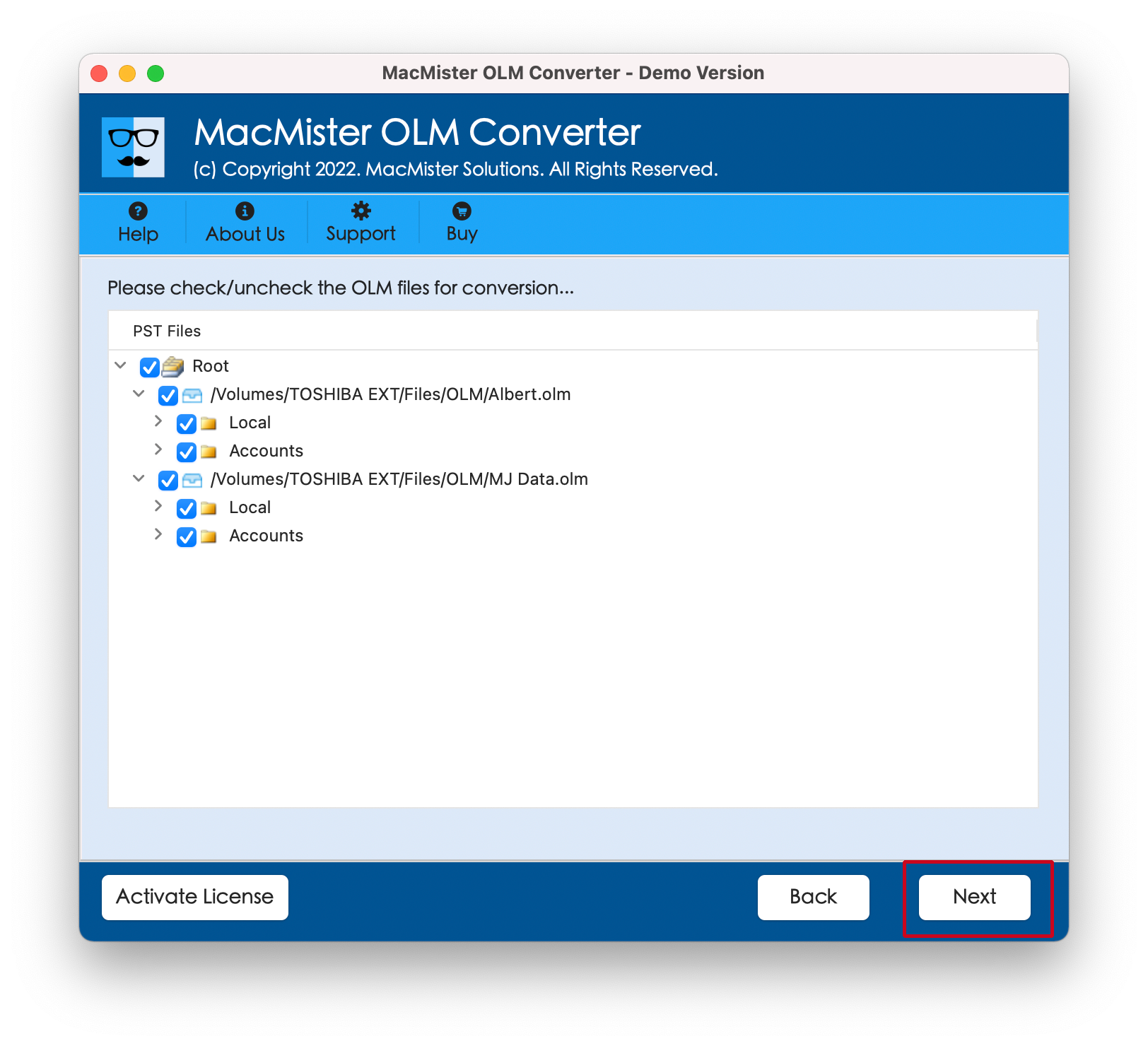
Step 4. Click Select Saving Options and choose MBOX saving type from the drop-down menu.
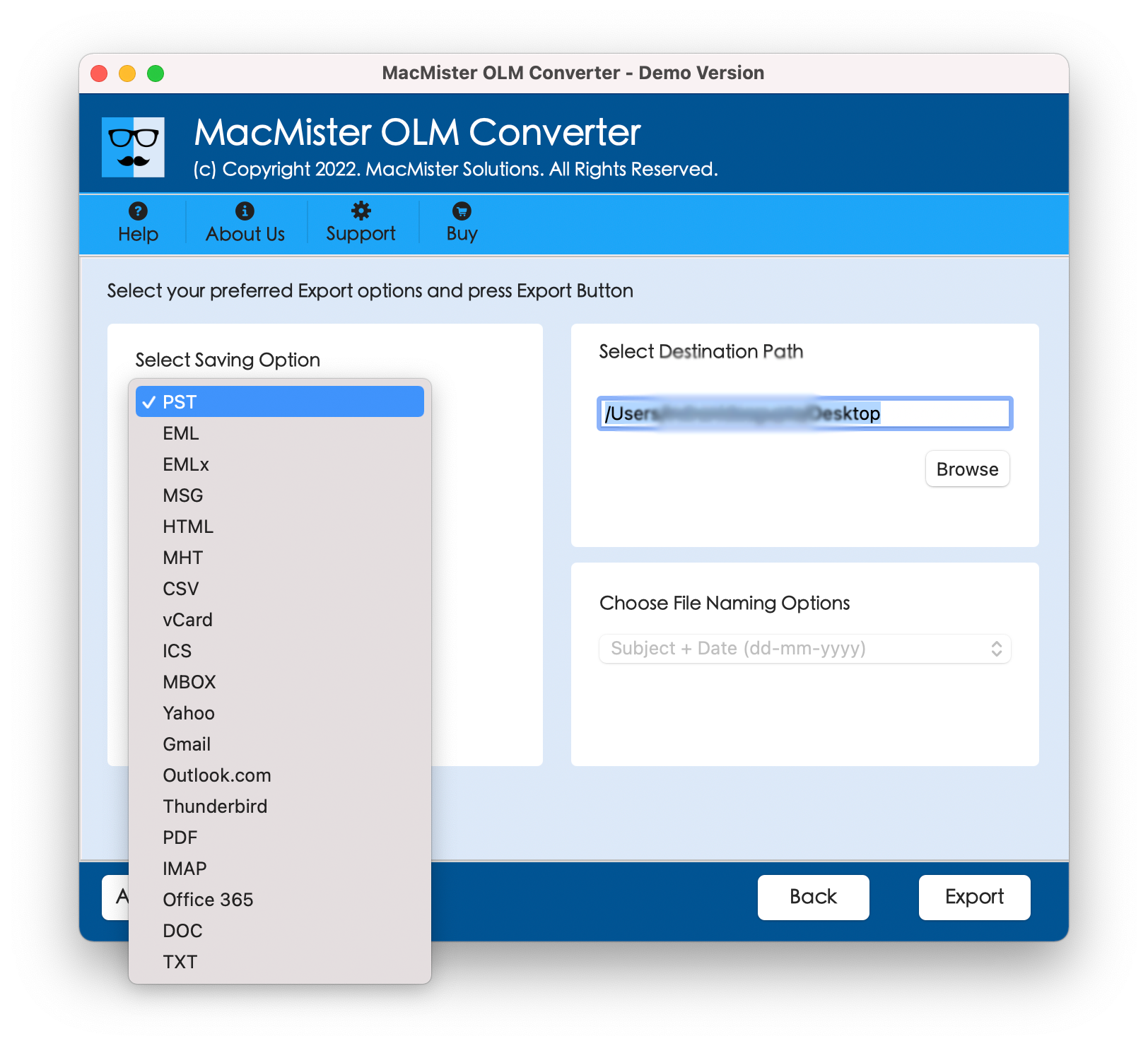
Step 5. Set MBOX sub-options and click Export button to start the conversion process.
Step 6. The tool will display Live Conversion Report which highlights the live conversion details of OLM files to users.
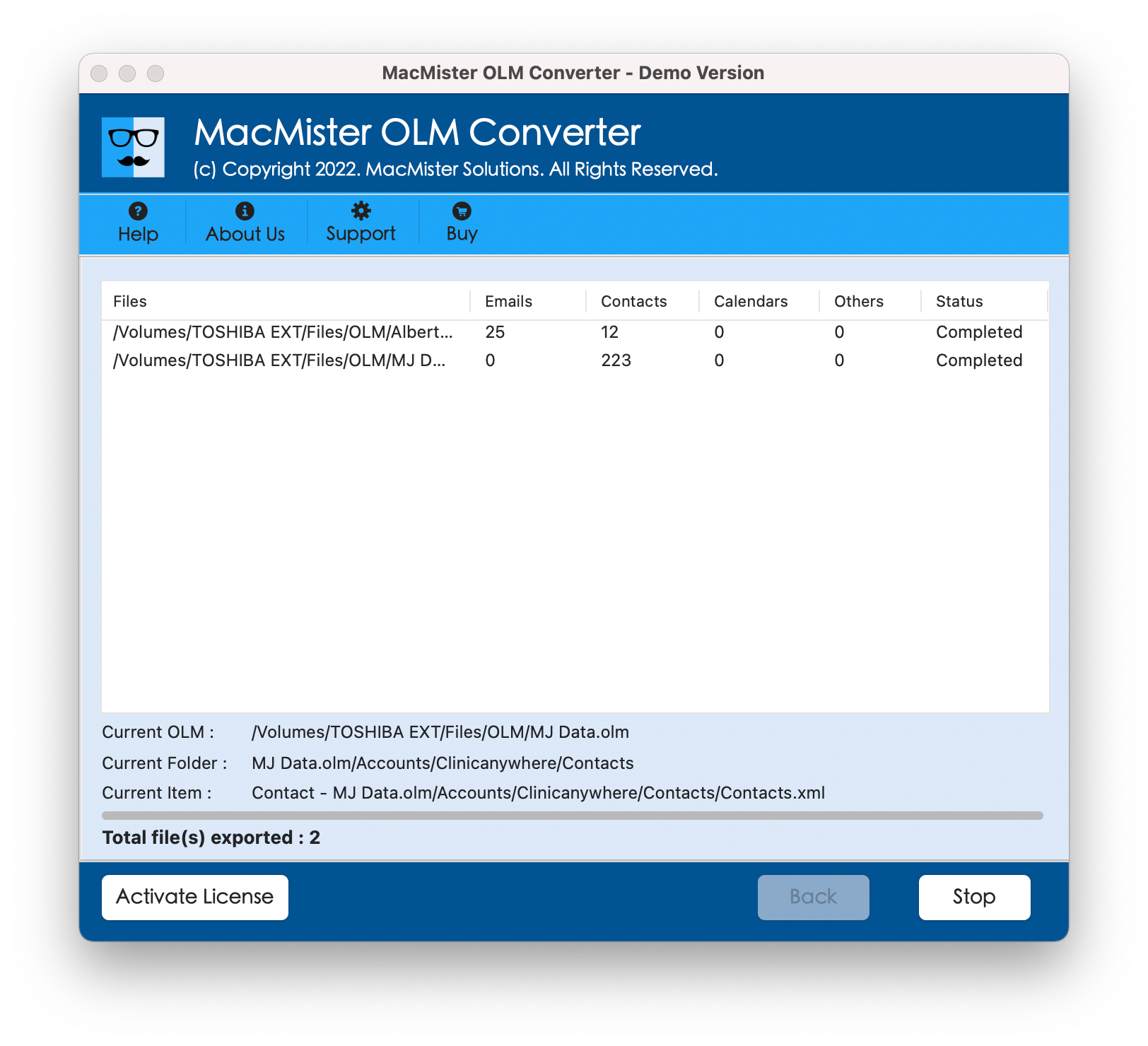
In just a matter of seconds, the tool will finish the process and then “Conversion Completed” message will display on the screen. Tap OK button and then import MBOX files into Mac Mail account. Follow the steps for the same –
Step 1. Open Mac Mail email client.
Step 2. Go to File menu and choose Import Mailboxes… option.
Step 3. Tap Files in MBOX format.
Step 4. Browse and locate exported .mbox files for import.
Step 5. Tap Choose button.
Step 6. Apple Mail starts the import process immediately which will hardly take few seconds to complete.
Now, access imported files by navigating to the left pane of Apple Mail, go to Import folder appearing under On My Mac, click its sub-folder i.e. Inbox to list all the email within account. After viewing the desired email message, you will see that the app has accurately implemented the process. The content and data integrity of OLM emails will appear with 100% accuracy in Apple Mail account after export.
Conclusion
In the blog, we have offered a matchless way to resolve how do I export all my Outlook emails in Mac Mail on Mac with attachments. MacMister OLM Converter for Mac is a great tool to batch export Outlook emails saved in OLM file into Mac Mail supported MBOX file at once. With the help of the software, users can precisely convert Outlook for Mac supported OLM file to Mac Mail compatible MBOX format in few seconds. The app is friendly, cost-effective, and easy to use. It possesses an environment which is easily operable by all types of users effortlessly. Moreover, the powerful features of the tool will help users exporting Outlook emails in Mac Mail according to the requirements. However, one can download freeware version of the app to check the export steps in detail. It also allows exporting 25 Outlook emails in Mac Mail free of cost.