If you are moving to Windows Outlook from Apple Mail and constantly thinking how to export mailbox from Apple Mail into MBOX file and convert it to Outlook PST with precise emails and attachments! Then no worries at all as in the write-up, we have described a method that will immediately export mailbox from Apple Mail into MBOX file and perform the conversion of the same into PST with 100% accuracy.
Apple Mail is a default email client of Mac and is widely used by professionals for managing large emails on a daily basis. It is built with Export Mailbox option which allows exporting Apple Mail mailboxes into single MBOX file. Windows Outlook, on the other hand is similar to Apple Mail. It also help users in managing and organizing regular email messages, contacts, calendars, events, tasks, notes, and journals with ease. And as Apple Mail, the email application supports Import/Export option that enables users to export Outlook database into PST. So, both Apple Mail and Windows Outlook have different supported formats, thereby it is necessary for users to convert MBOX to PST in order to access Apple Mail mailboxes into Outlook Windows.
How to Export Mailbox from Apple Mail into MBOX File and Convert to Outlook PST?
To export mailbox from Apple Mail into MBOX file, make use of Apple Mail Export Mailbox option. The steps are discussed below –
Step 1. Run Apple Mail.
Step 2. Choose the desired mailboxes to export. Select multiple mailboxes by holding down the Command key when clicking.
Step 3. Navigate to the menu bar which is appearing at the top of the screen and tap Mailbox.
Step 4. Select Export Mailbox option from the drop-down menu.
Step 5. From navigation window, select a folder where you need to save exported mailboxes or create a new one.
Step 6. Tap Choose to terminate the export process.
Apple Mail will successfully export all the chosen mailboxes into selected folder as .mbox.
Now, to convert exported mailboxes into PST file, utilize MacMister MBOX to PST Converter Mac that quickly batch export MBOX files into PST at once with precise results in minimum time. The application is user-friendly and easy to use. It contains an intuitive environment so that all technical and non-technical users can export MBOX files to PST on mac without any trouble.
Moreover, the tool is designed with exceptional features that are helpful in exporting .mbox files to .pst on macOS according to the requirements. Download the free demo version of the software to check the detailed processing of the same on Mac for free.
Step-by-Step Software Tutorial to Convert Exported MBOX Files into PST on Mac
Step 1. Download, launch, and run the software on a Mac-based system.
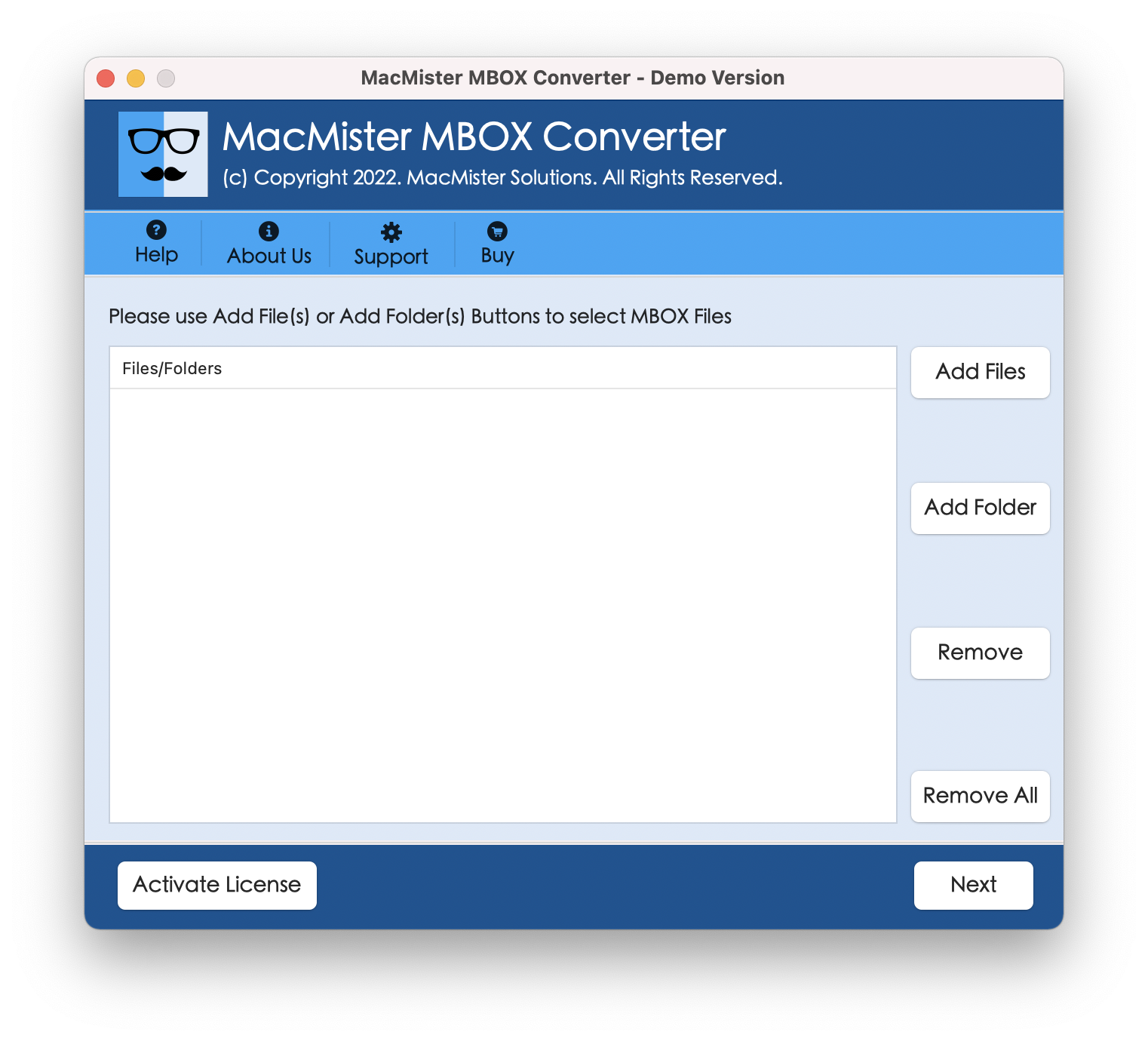
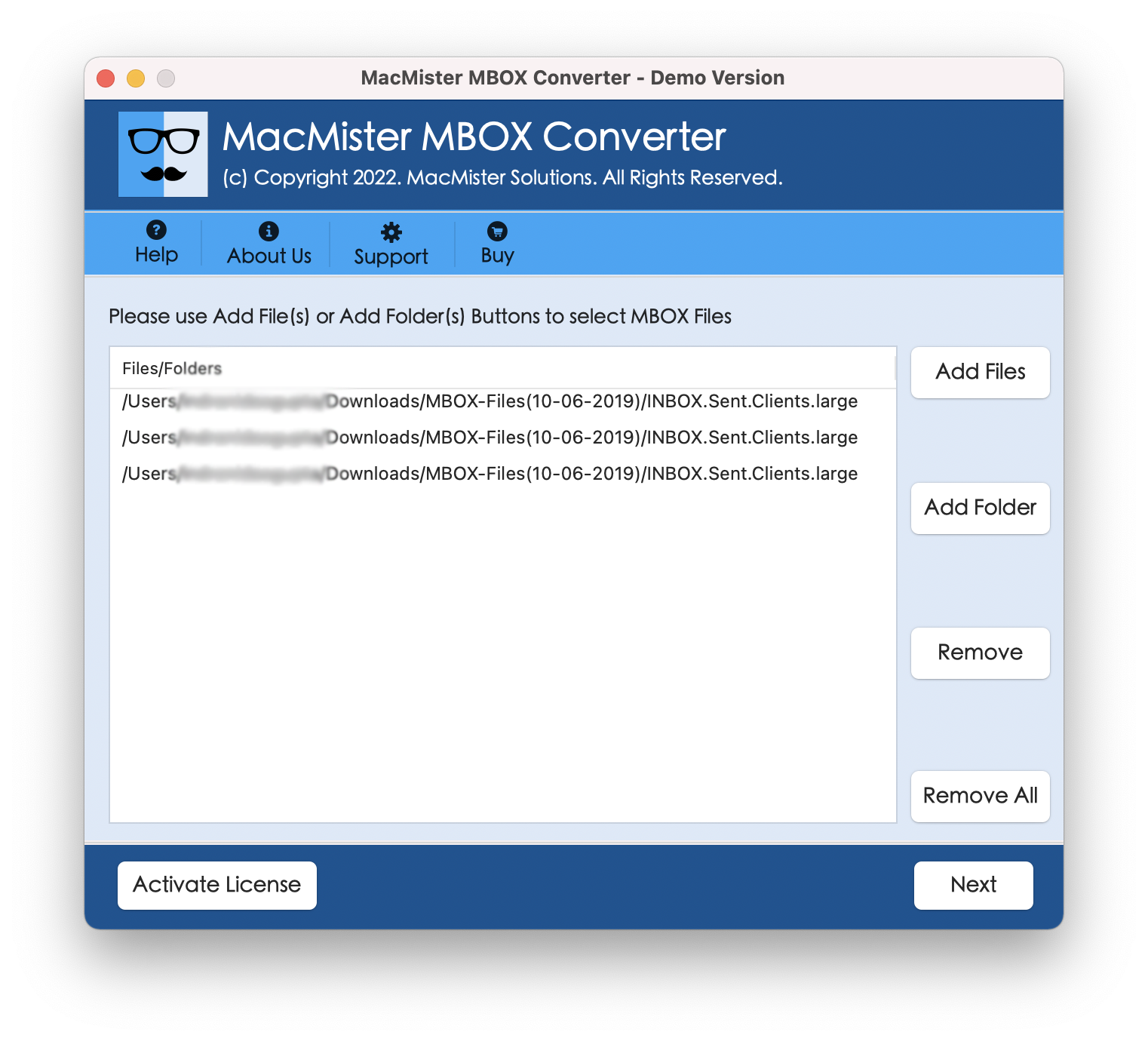
Step 2. Use Add File(s)/Add Folder buttons to add the essential MBOX files on the tool. By clicking the Add File(s) button, users can upload the necessary .mbox files manually on the panel and by making use of Add Folder button, users can load a folder of unlimited MBOX files on the tool for batch export. Click Next to proceed.
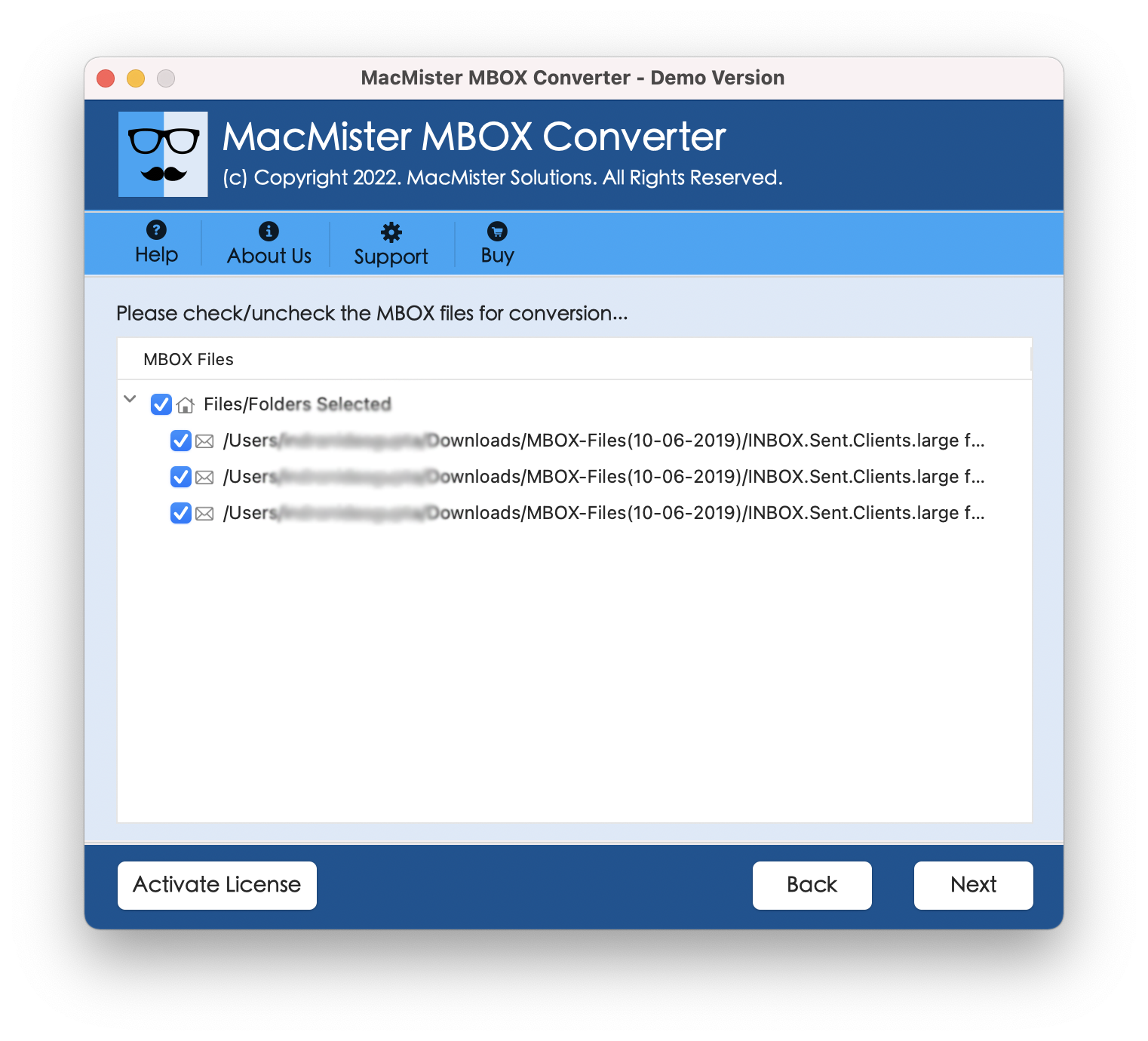
Step 3. Now, the application will show the list of all MBOX files on the screen with checkboxes that are selected by default. However, one can perform the selection according to the requirements and export selected MBOX files into PST. Click Next to continue.
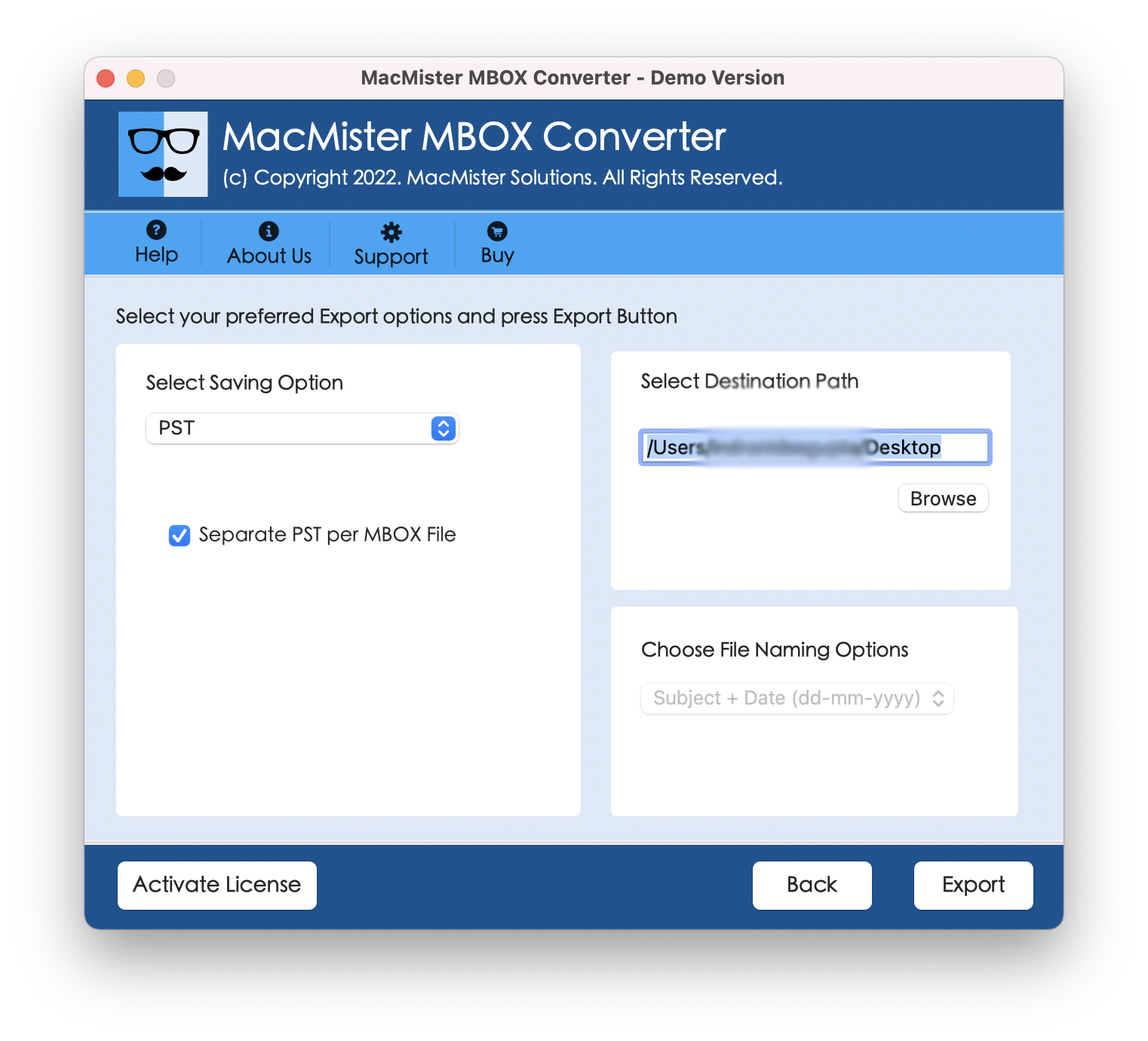
Step 4. From Select Saving Options, choose PST saving type.
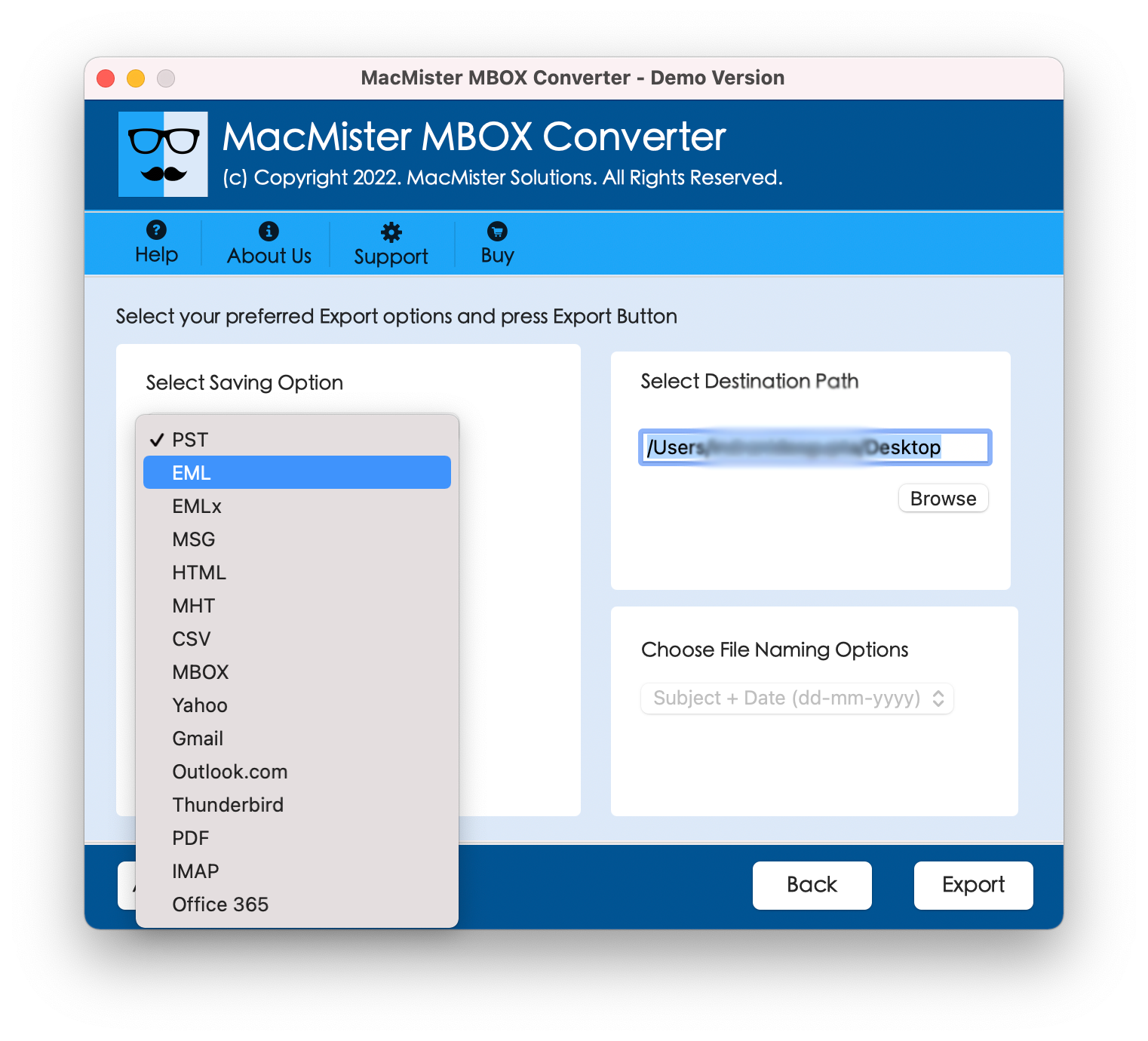
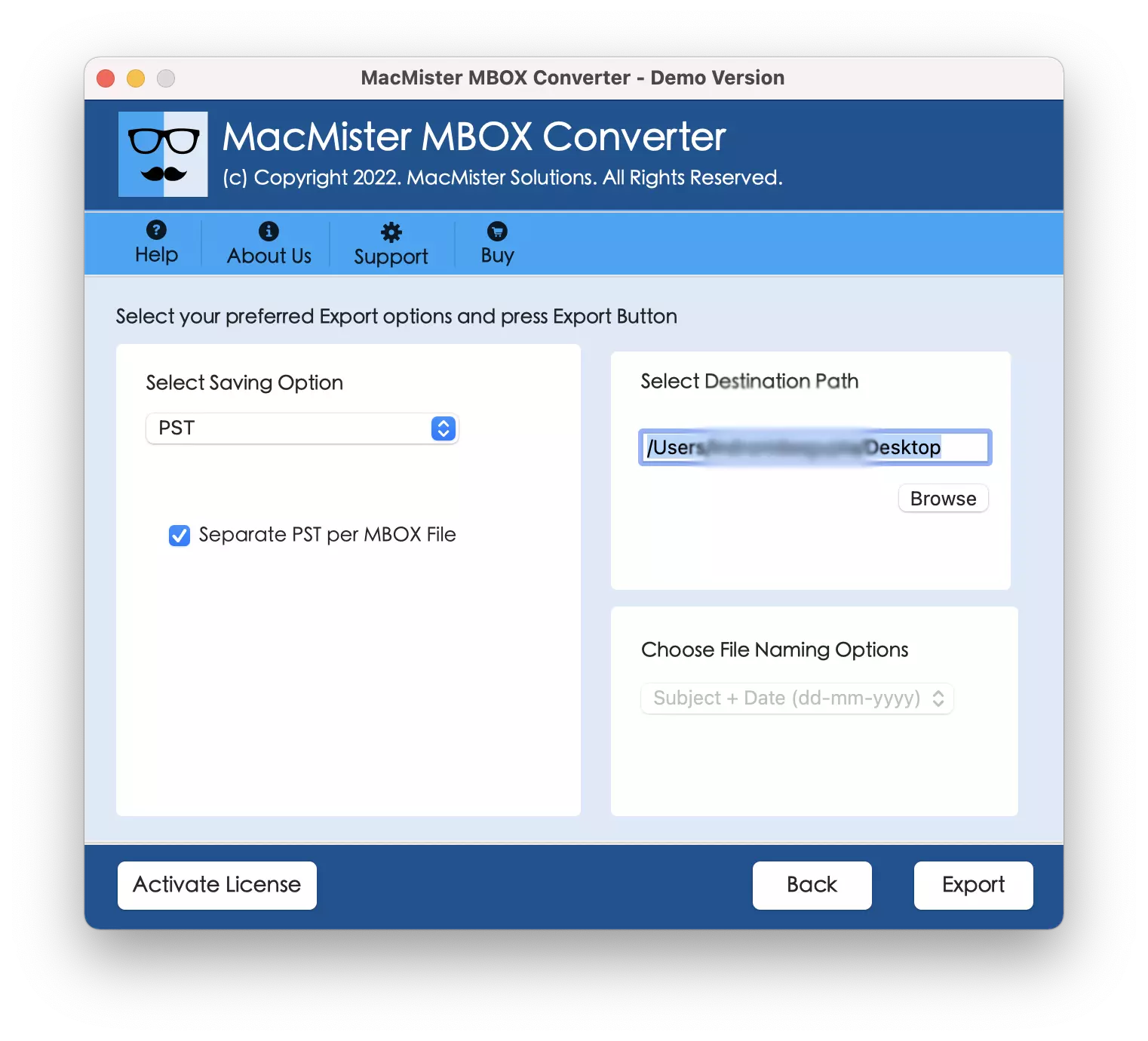
Step 5. Apply the sub-options of PST according to the requirements and press Export.
Step 6. The Live Conversion Report window displays which shows the live export progress of MBOX files to users.
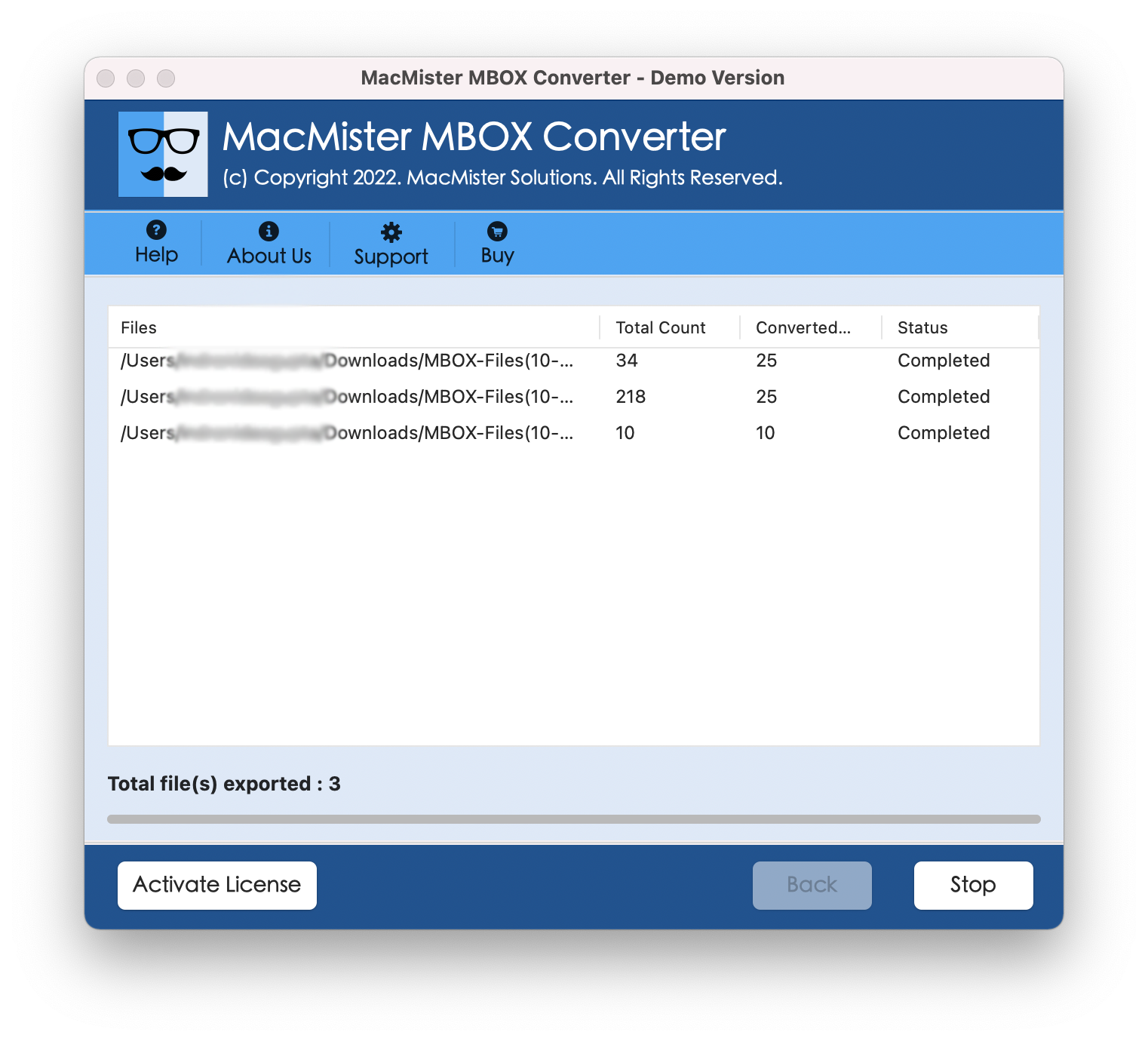
In fraction of seconds, the conversion task will end and then “Conversion Completed” notification will display on the screen. Click OK and then use any cloud-based service or external drive to transfer PST files on Windows. Now, go through the below steps to import PST in Windows Outlook –
Step 1. Run Windows Outlook.
Step 2. Go to File.
Step 3. Select Open & Export.
Step 4. Tap Import/Export.
Step 5. Choose Import from another program or file and press Next.
Step 4. Select Outlook Data File (.pst) and press Next.
Step 5. Click Browse button to locate and load .pst file and at the same time, set the options to manage duplicates, if required.
Step 6. Press Next.
Step 7. Choose the necessary folder to import and tap Finish.
Now, go to the specified Outlook folder to check imported files. However, you will see that the tool has correctly performed the task. All the emails of MBOX file will display with precise text, metadata properties, and layout.
Conclusion
In the blog, we have provided a solution for how to export mailbox from Apple Mail into MBOX file and convert it to Outlook PST with emails and attachments. The first section has discussed the procedure to export Apple Mail mailboxes into MBOX file and the second method has shown the application i.e. MacMister MBOX Converter for Mac that will help users converting exported MBOX files to PST with accurate results. Also, the tool has remarkable features that will help users performing the desired task according to the requirements. Download the software free demo to check the process in detail. It also allows exporting 25 Apple Mail emails to PST for free.